
Looking to make your display name stand out on Discord? Display Name Styles is a Nitro feature that lets you customize how your display name appears with unique fonts, colors, and animated effects. Express your personality with the same display name, just a fresh new look.
What this article covers:
What are Display Name Styles?
Display Name Styles allow Discord Nitro users to customize how their display names appear on Discord. With this feature, you can personalize your display name through various styling options including fonts, colors, and effects.
How to Access Display Name Styles
Desktop/Browser
1. Select your username at the bottom-left corner to open your profile card.
2. Press Edit Profile.
3. Under Display Name Style, press the + button to open the Change Display Name Style menu.
Find Display Name Style from Your Profile Card > Edit Profile
Tip: You can also get here through User Settings by pressing Edit Profiles at the top of the Account page.
Find Display Name Style in User Settings > Edit Profile
Mobile
1. Tap the You bar at the bottom of the screen.
2. Press Edit Profile.
3. Under Display Name Style, tap Font, Effect, or Color to customize each option.
4. Press Apply to save your changes.
Customize Font, Effect, and Color Under Display Name Style on Mobile
Where Display Name Styles Appear
Additionally, Display Name Styles do not include animations on mobile devices—you will see the fonts, colors, and effects, but they will appear static (without animation).
Display Name Styles appear in the following locations:
- Profile Panel and User Profile - Your Display Name Style appears in your profile panel located in the bottom-left area and your User Profile.
Display Name Styles in User Profile
- Direct Messages (DM) and Group Chats - Your Display Name Style appears fully in all DM and group chat member lists. However, in messages, Display Name Styles will only show the font unless you hover over the message.
Display Name Styles in a Group Chat
- DM List: Your Display Name Style appears in the DM list, but only the font is visible. To see the color or effect, hover over the user.
Display Name Styles in DM List
- Per-Server Profiles - Your Display Name Style can be customized for each per-server profile.
Display Name Styles in Different Per-Server Profiles
Tip: You can quickly access your per-server profile by right-clicking your avatar in any text channel and selecting Edit Per-server Profile. Alternatively, navigate to User Settings > Profiles > Per-Server Profiles.
Navigating to Per-Server Profiles from Your Avatar
- Servers - Fonts are displayed, but color and effect settings will not appear in servers. Instead, the server role color or enhanced role style in that server will show.
Display Name Styles in a Server
How to Set Your Display Name Style Options
Display Name Styles allow you to personalize your display name with three customization components:
Fonts
Choose from various unique fonts:
- gg sans (Discord's default font)
- Tempo
- Sakura
- Jellybean
- Modern
- Medieval
- 8Bit
- Vampyre
- Monkey Bars
- Mainframe
- Headbang
- Journal
Different Fonts Available
Effects
Select from various effect options:
- Solid
- Gradient
- Neon
- Toon
- Pop
- Gummy
- Prism
Different Effects Available
Tip: The Gradient effect lets you choose two colors, while the Prism effect lets you choose five.
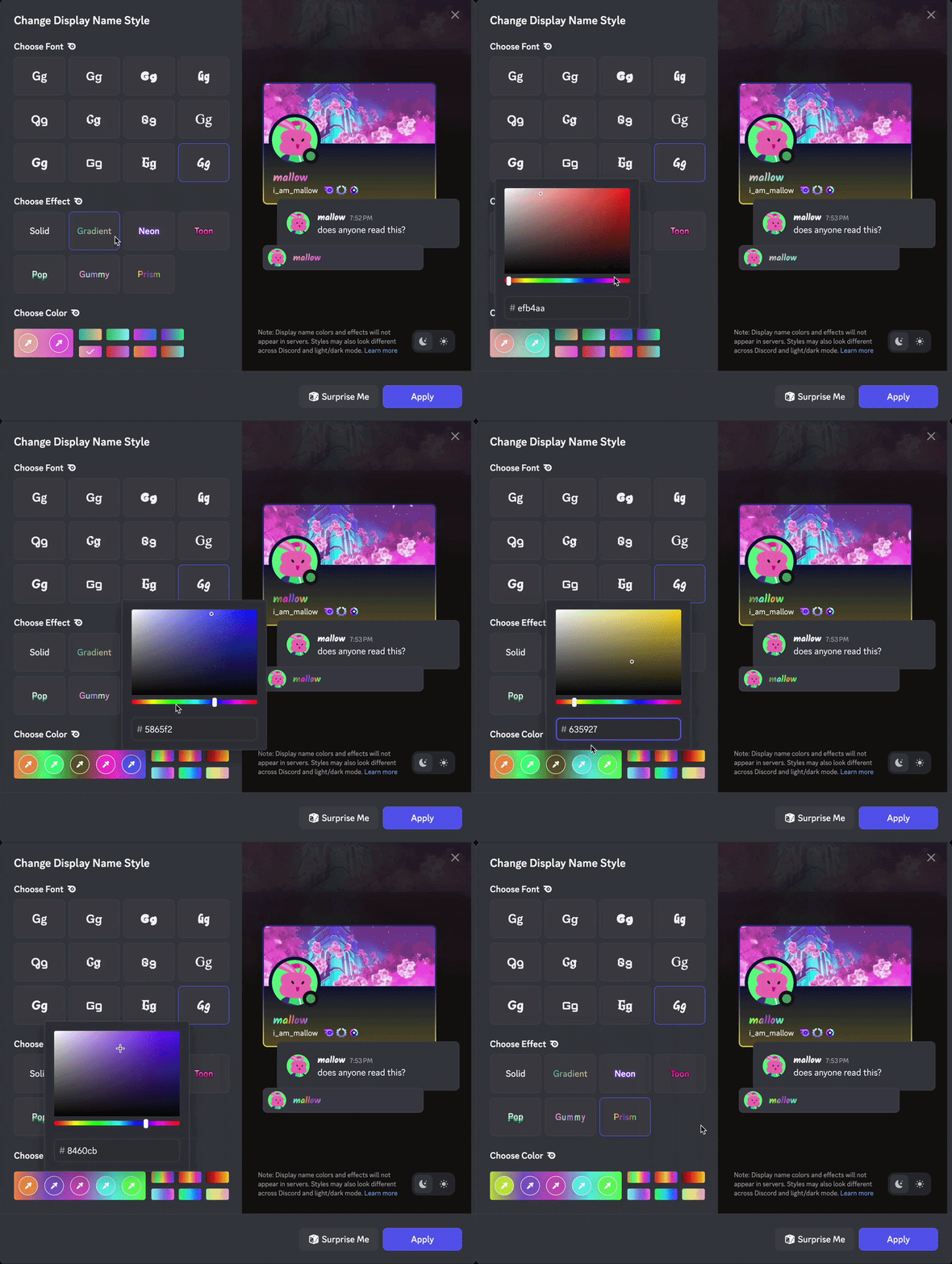 Color Presets and Color Pickers for Gradient Effect
Colors
Choose from preset options or use the color picker for enhanced color customization:
- Preset color options: Select any color from the preset palette.
- Custom color picker: Select the Custom Color option to create your own shade.
- Default: Select the Default box to revert your color to the default. When using the Solid effect, choosing Default color gives you the option to apply no color at all. When using Gradient effect, there’s no Default color option.
Select Color from Presets or Color Picker
Tip: Reset your color selection to Default by pressing the Default box.
Default Box under Choose Color
Surprise Me Feature
Use the Surprise Me button to get random font, color, and effect combinations for inspiration.
Surprise Me Button
Light/Dark Mode Preview
Toggle between light and dark mode preview to see how your Display Name Style looks in both themes before applying your changes.
Light and Dark Mode Preview Buttons
Disabling Display Name Styles
If you prefer not to see Display Name Styles from yourself and other users, go to your User Settings > App Settings on desktop. Then select Accessibility and disable the Display Name Styles toggle. This will prevent you from seeing Display Name Styles across Discord.
To Disable Display Name Styles, Go to User Settings > Accessibility on Desktop
Tip: You can disable Display Name Styles on mobile by tapping the You bar at the bottom of the screen, then pressing the cogwheel icon to access Settings. From there, navigate to Accessibility and scroll down to find Display Name Styles. Tap the toggle to turn the feature on or off.